
内容
先回投稿で利用した PDF Sharpの他の機能を使ってみました。今回、確認したのは次の3つの機能です・
① PDFへの画像挿入(新規作成)
② 既存PDFファイルへの画像挿入
③ PDFパスワードの設定と解除
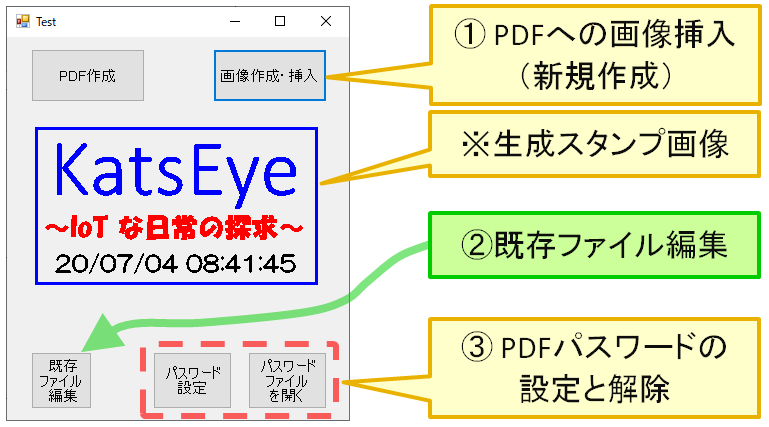
① PDFへの画像挿入
先回投稿では、新規PDFに直接 文字や四角形等を描画し、PDFスタンプを作成しました。ここでは予め作成したスタンプ画像とデジタルカメラで撮影した写真を新規PDFに挿入します。
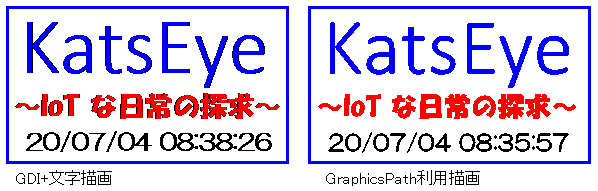
次の図は今回プログラムで予め作成したスタンプ画像です。2つとも同じフォント・色ですが、右側のGraphicPathを利用して描画した方が、きれいに見えるので今回は右側を採用しています。
次の図は、新規PDFにスタンプ画像とデジタルカメラで撮影した写真をプログラムで挿入したものです。スタンプ画像は背景を無色透明にして、png形式で保存しているので、重なる部分でも背景部分は塗り潰されていません。

予めスタンプ画像を作成し、画像としてPDFに挿入する狙いは、特に設定をしなくても日本語フォントを多く利用できることです。ただ、やり方を知らないだけなのかもしれませんが、PDF Sharpで直接描画する方がきれいに感じます。
② 既存ファイル編集
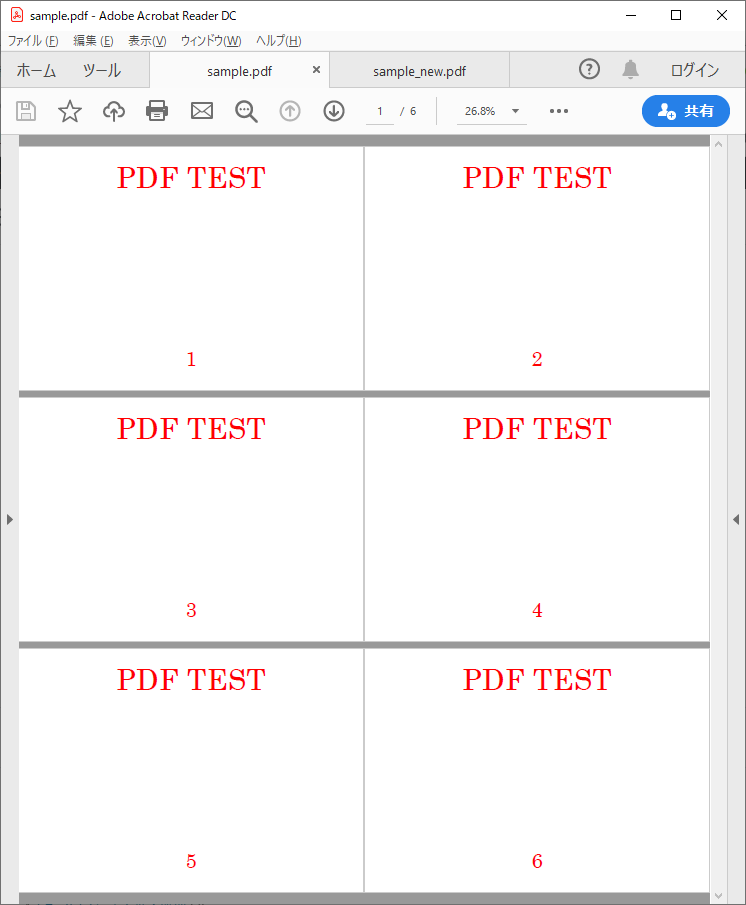
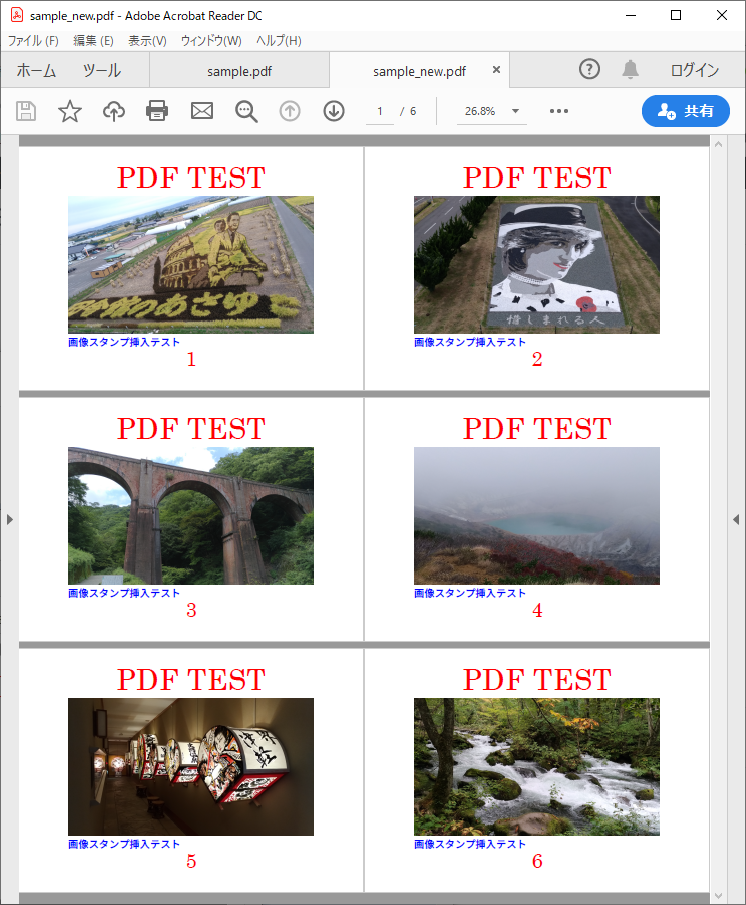
予めタイトルとページ番号だけが書かれたPDFファイルを用意し、プログラムからこのファイルを開いて写真と文字を挿入するプログラムを作成しています。
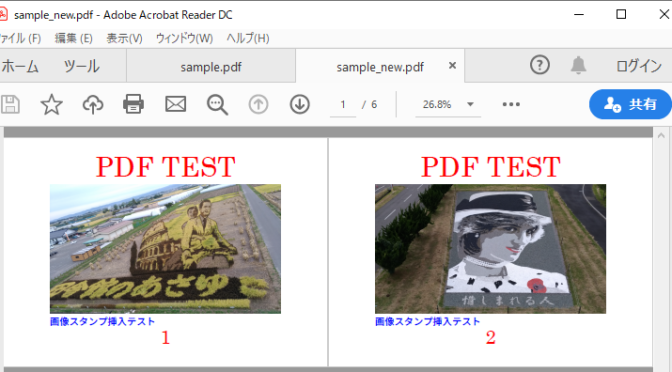
下の画像は、元ファイルと編集後ファイルです。
◆元ファイル◆
◆編集後ファイル(写真・文字列挿入)◆
③ パスワード設定と解除
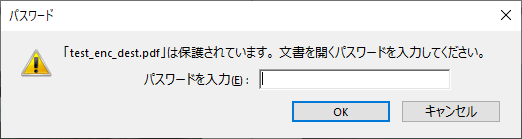
パスワードを設定すると、次回からファイルを開くときに、次の様にパスワード入力を求められます。
プログラム
作成したプログラムです。
using System;
using System.Collections.Generic;
using System.ComponentModel;
using System.Data;
using System.Drawing;
using System.Linq;
using System.Text;
using System.Threading.Tasks;
using System.Windows.Forms;


using System.Diagnostics;
using System.IO;

using PdfSharp;
using PdfSharp.Drawing;
using PdfSharp.Pdf;
using PdfSharp.Pdf.IO;
using PdfSharp.Pdf.Security;


namespace PDF_SHARP
{
    public partial class Form1 : Form
    {
        public Form1()
        {
            InitializeComponent();
            PdfSharp.Fonts.GlobalFontSettings.FontResolver = new JapaneseFontResolver();
        }

        // PDF作成
        private void Button1_Click(object sender, EventArgs e)
        {
            PdfDocument document = new PdfDocument();
            document.Info.Title = "PDF SHARP TEST";
            document.Info.Author = "著者" ;
            PdfPage page = document.AddPage();
            page.Size = PageSize.A5;
            page.Orientation = PageOrientation.Portrait;

            XGraphics gfx = XGraphics.FromPdfPage(page);
            XFont font = new XFont("Gen Shin Gothic",25, XFontStyle.Regular);
            gfx.DrawString("KatsEye",font,XBrushes.Blue,new XRect(5, 5, 120, 22),XStringFormats.Center);

            font = new XFont("Gen Shin Gothic", 9, XFontStyle.Regular);
            gfx.DrawString("~IoT な日常の探求~", font, XBrushes.Red , new XRect(5, 26, 120, 22), XStringFormats.Center);

            String dt_now = DateTime.Now.ToString("yy/MM/dd hh:mm:ss");
            font = new XFont("Gen Shin Gothic", 10, XFontStyle.Regular);
            gfx.DrawString(dt_now, font, XBrushes.Black, new XRect(5, 37, 120, 22), XStringFormats.Center);

            gfx.DrawRoundedRectangle(new XPen(XColors.Blue , 2) , 15 , 4 , 100 , 52 , 10 , 10);

            String filename = DateTime.Now.ToString("yyyy_MM_dd") + ".pdf" ;
            document.Save(filename);
            Process.Start(filename);
        }

        // 画像作成・挿入
        private void Button2_Click(object sender, EventArgs e)
        {   // ◆ スタンプ画像生成・保存 ◆
            String img_file = "stamp.png";
            String dt_now = DateTime.Now.ToString("yy/MM/dd hh:mm:ss");
            bool chk = true;

            Bitmap canvas = new Bitmap(pictureBox1.Width, pictureBox1.Height);  // Imageオブジェクト作成
            Graphics g = Graphics.FromImage(canvas);                            // Graphicsオブジェクト作成

            Pen Pen = new Pen(Color.Blue, 3);
            Pen.LineJoin = System.Drawing.Drawing2D.LineJoin.Round;
            g.DrawRectangle(Pen, new Rectangle(5, 10, 280, 155));

            if (!chk)
            {   // GDI+描画
                Font fnt = new Font("Calibri Light", 60);
                g.DrawString("KatsEye", fnt, Brushes.Blue, 5, 0);               // 文字描画

                fnt = new Font("HGS創英角ポップ体", 20);
                g.DrawString("~IoT な日常の探求~", fnt, Brushes.Red, 8, 96);  // 文字描画

                fnt = new Font("HG丸ゴシックM-PRO", 17);
                g.DrawString(dt_now, fnt, Brushes.Black, 20, 134);              // 文字描画
            }
            else
            {   // GraphicsPath利用
                System.Drawing.Drawing2D.GraphicsPath gp = new System.Drawing.Drawing2D.GraphicsPath(); // GraphicsPathオブジェクト作成
                FontFamily ff = new FontFamily("Calibri Light");                // GraphicsPath文字列追加
                gp.AddString("KatsEye", ff, 0, 80, new Point(5, 0), StringFormat.GenericDefault);
                g.FillPath(Brushes.Blue, gp);                                   // 文字列塗りつぶす
                g.DrawPath(Pens.Blue, gp);                                      // 文字列縁描画

                gp = new System.Drawing.Drawing2D.GraphicsPath();               // GraphicsPathオブジェクト作成
                ff = new FontFamily("HGS創英角ポップ体");
                gp.AddString("~IoT な日常の探求~", ff, 0, 26, new Point(8, 96), StringFormat.GenericDefault);
                g.FillPath(Brushes.Red, gp);                                    // 文字列塗りつぶす
                g.DrawPath(Pens.Red, gp);                                       // 文字列縁描画

                gp = new System.Drawing.Drawing2D.GraphicsPath();               // GraphicsPathオブジェクト作成
                ff = new FontFamily("HG丸ゴシックM-PRO");
                gp.AddString(dt_now, ff, 0, 22, new Point(20, 134), StringFormat.GenericDefault);
                g.FillPath(Brushes.Black, gp);                                  // 文字列塗りつぶす
                g.DrawPath(Pens.Black, gp);                                     // 文字列縁描画

                ff.Dispose();
            }


            g.Dispose();                                                        // Graphicsオブジェクトリソース解放
            pictureBox1.Image = canvas;                                         // PictureBox1表示

            pictureBox1.Image.Save(img_file, System.Drawing.Imaging.ImageFormat.Png);

            // ◆ PDF生成(画像挿入) ◆
            PdfDocument document = new PdfDocument();
            document.Info.Title = "PDF SHARP TEST";
            document.Info.Author = "著者";
            PdfPage page = document.AddPage();
            page.Size = PageSize.A5;
            page.Orientation = PageOrientation.Portrait;

            XGraphics gfx = XGraphics.FromPdfPage(page);
            XImage img = XImage.FromFile(img_file);

            // ◆ スタンプ挿入 ◆
            for (int i = 0; i < 10 ; i++)
            {
                if (i < 5)
                {
                    gfx.DrawImage(img, 30 + i*67 , 20 + i*40, 105 , 60);
                } else {
                    gfx.DrawImage(img, 30 + (i-5)*67 , 20 + 160 - (i-5)*40 , 105 , 60);
                }
            }

            XFont font = new XFont("Gen Shin Gothic", 12, XFontStyle.Regular);
            gfx.DrawString("画像スタンプ挿入テスト", font, XBrushes.Red, new XRect(10, 2, 120, 22), XStringFormats.TopLeft);

            // ◆ 写真挿入 ◆
            img = XImage.FromFile("sample_01.jpg");
            gfx.DrawImage(img, 30 , 275 , 180 , 100);       //100,56
            img = XImage.FromFile("sample_02.jpg");
            gfx.DrawImage(img , 220 , 275 , 180 , 100);       //100,56

            gfx.DrawString("写真挿入テスト", font, XBrushes.Red, new XRect(10, 255,120, 22), XStringFormats.TopLeft);

            String filename = DateTime.Now.ToString("yyyy_MM_dd") + "_add_img.pdf";
            document.Save(filename);
            Process.Start(filename);
        }

        // 既存ファイル編集
        private void Button3_Click(object sender, EventArgs e)
        {
            String PDF_src = @"sample.pdf";
            String PDF_new = @"sample_new.pdf";

            PdfDocument PDFDoc = PdfReader.Open( PDF_src , PdfDocumentOpenMode.Import);
            PdfDocument PDFNewDoc = new PdfDocument();

            for (int Pg = 0; Pg < PDFDoc.Pages.Count; Pg++)
            {
                PdfPage pp = PDFNewDoc.AddPage(PDFDoc.Pages[Pg]);
                XGraphics gfx = XGraphics.FromPdfPage(pp);

                // 写真挿入
                string img_file = "sample_0"+ (Pg+1).ToString().Trim() + ".jpg";
                XImage img = XImage.FromFile(img_file);
                gfx.DrawImage(img, 120, 120, 600, 336);       //100,56

                // 文字列追加
                XFont font = new XFont("Gen Shin Gothic", 25, XFontStyle.Regular);
                gfx.DrawString("画像スタンプ挿入テスト", font, XBrushes.Blue, new XRect(120, 460, 120, 22), XStringFormats.TopLeft);
            }

            PDFNewDoc.Save(PDF_new);
            Process.Start(PDF_new);
        }

        // 既存ファイルにパスワードを設定し、別名保存する
        private void Button4_Click(object sender, EventArgs e)
        {
            const string filenameSource = "test_enc_src.pdf";
            const string filenameDest = "test_enc_dest.pdf";

            // Open an existing document. Providing an unrequired password is ignored.
            PdfDocument document = PdfReader.Open(filenameSource, "some text");

            PdfSecuritySettings securitySettings = document.SecuritySettings;

            // Setting one of the passwords automatically sets the security level to
            // PdfDocumentSecurityLevel.Encrypted128Bit.
            securitySettings.UserPassword = "user";
            securitySettings.OwnerPassword = "owner";

            // Don't use 40 bit encryption unless needed for compatibility
            //securitySettings.DocumentSecurityLevel = PdfDocumentSecurityLevel.Encrypted40Bit;

            // セキュレィティ設定
            securitySettings.PermitAccessibilityExtractContent = false;
            securitySettings.PermitAnnotations = false;
            securitySettings.PermitAssembleDocument = false;
            securitySettings.PermitExtractContent = false;
            securitySettings.PermitFormsFill = true;
            securitySettings.PermitFullQualityPrint = false;
            securitySettings.PermitModifyDocument = true;
            securitySettings.PermitPrint = false;

            document.Save(filenameDest);        // 保存
            Process.Start(filenameDest);        // 保存ファイルを開く
        }


        // パスワード設定したファイルを開き、解除状態で保存
        private void Button5_Click(object sender, EventArgs e)
        {
            const string filenameDest = "test_enc_dest.pdf";
            PdfDocument document;

            document = PdfReader.Open(filenameDest, "owner");
            document.Save(filenameDest);        // 保存
            Process.Start(filenameDest);        // 保存ファイルを開く

        }
    }
}
まとめ
PDF Sharp すごい!
参考サイト
◆既存ファイル挿入◆
https://stackoverflow.com/questions/17647872/pdfsharp-edit-a-pdf-file
◆PDFsharp Sample: Protect Document◆
http://www.pdfsharp.net/wiki/ProtectDocument-sample.ashx
「C# PDF Sharp を使う」への1件のフィードバック