
概要
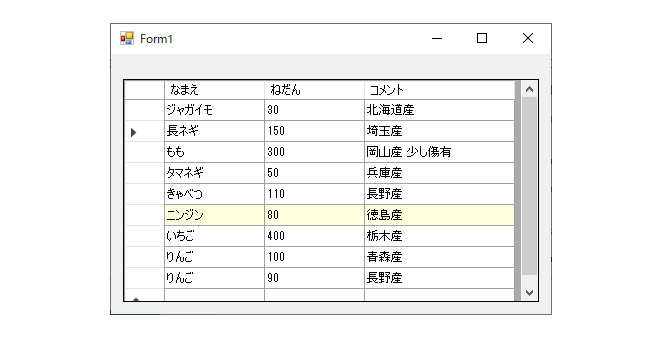
C# dataGridView のリスト項目をDrag & Drop で移動させるプログラムを確認したので書きとめておきます。
実際の処理状況は次の動画の通りです。
プログラム
フォーム上に dataGridView1 コントロールを配置し、“AllowDrop” プロパティを“True”にしておきます。また、予め次図の様に列を編集しています。
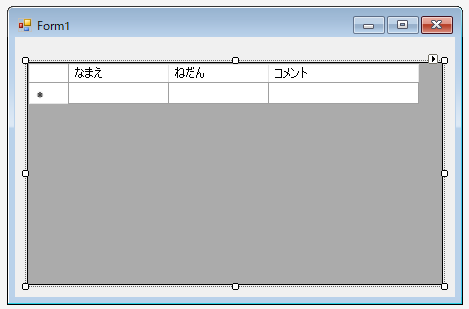
プログラムは次の通りです。
using System;
using System.Collections.Generic;
using System.ComponentModel;
using System.Data;
using System.Drawing;
using System.Linq;
using System.Text;
using System.Threading.Tasks;
using System.Windows.Forms;

namespace DataGridViewDragDrop
{
    public partial class Form1 : Form
    {
        // https://www.inforbiro.com/blog/c-datagridview-drag-and-drop-rows-reorder

        private Rectangle dragBoxFromMouseDown;
        private int rowIndexFromMouseDown;
        private int rowIndexOfItemUnderMouseToDrop;


        public Form1()
        {
            InitializeComponent();
            gridview1_init();
        }


        private void gridview1_init() {
            DataTable table = new DataTable("Table");

            dataGridView1.Rows.Add("りんご", "100", "青森産");
            dataGridView1.Rows.Add("りんご", "90", "長野産");
            dataGridView1.Rows.Add("もも", "300", "岡山産 少し傷有");
            dataGridView1.Rows.Add("きゃべつ", "110", "長野産");
            dataGridView1.Rows.Add("タマネギ", "50", "兵庫産");
            dataGridView1.Rows.Add("ジャガイモ", "30", "北海道産");
            dataGridView1.Rows.Add("長ネギ", "150", "埼玉産");
            dataGridView1.Rows.Add("ニンジン", "80", "徳島産");
            dataGridView1.Rows.Add("いちご", "400", "栃木産");
        }


        private void DataGridView1_MouseMove(object sender, MouseEventArgs e)
        {
            if ((e.Button & MouseButtons.Left) == MouseButtons.Left)
            {
                // If the mouse moves outside the rectangle, start the drag.
                if (dragBoxFromMouseDown != Rectangle.Empty &&
                !dragBoxFromMouseDown.Contains(e.X, e.Y))
                {
                    // Proceed with the drag and drop, passing in the list item.
                    DragDropEffects dropEffect = dataGridView1.DoDragDrop(
                          dataGridView1.Rows[rowIndexFromMouseDown],
                          DragDropEffects.Move);
                }
            }
        }
        private void DataGridView1_MouseDown(object sender, MouseEventArgs e)
        {
            // Get the index of the item the mouse is below.
            rowIndexFromMouseDown = dataGridView1.HitTest(e.X, e.Y).RowIndex;

            if (rowIndexFromMouseDown != -1)
            {
                // Remember the point where the mouse down occurred.
                // The DragSize indicates the size that the mouse can move
                // before a drag event should be started.
                Size dragSize = SystemInformation.DragSize;

                // Create a rectangle using the DragSize, with the mouse position being
                // at the center of the rectangle.
                dragBoxFromMouseDown = new Rectangle(
                          new Point(
                            e.X - (dragSize.Width / 2),
                            e.Y - (dragSize.Height / 2)),
                      dragSize);
            }
            else
                // Reset the rectangle if the mouse is not over an item in the ListBox.
                dragBoxFromMouseDown = Rectangle.Empty;
        }

        private void DataGridView1_DragOver(object sender, DragEventArgs e)
        {
            e.Effect = DragDropEffects.Move;
        }

        private void DataGridView1_DragDrop(object sender, DragEventArgs e)
        {
            // The mouse locations are relative to the screen, so they must be
            // converted to client coordinates.
            Point clientPoint = dataGridView1.PointToClient(new Point(e.X, e.Y));

            // Get the row index of the item the mouse is below.
            rowIndexOfItemUnderMouseToDrop = dataGridView1.HitTest(clientPoint.X, clientPoint.Y).RowIndex;

            // If the drag operation was a move then remove and insert the row.
            if (e.Effect == DragDropEffects.Move)
            {
                DataGridViewRow rowToMove = e.Data.GetData(typeof(DataGridViewRow)) as DataGridViewRow;

                if ((rowIndexOfItemUnderMouseToDrop >= 0) && (rowIndexOfItemUnderMouseToDrop < dataGridView1.Rows.Count - 1))
                {
                    Console.WriteLine(rowIndexFromMouseDown);
                    dataGridView1.Rows.RemoveAt(rowIndexFromMouseDown);
                    dataGridView1.Rows.Insert(rowIndexOfItemUnderMouseToDrop, rowToMove);

                    for (int row_idx = 0; row_idx < dataGridView1.Rows.Count ; row_idx++) {
                        Color tmp = Color.White;
                        if (row_idx == rowIndexOfItemUnderMouseToDrop) {
                            tmp = Color.LightYellow;
                        }

                        for (int clmn_idx = 0; clmn_idx < dataGridView1.Columns.Count; clmn_idx++) {
                            dataGridView1[ clmn_idx, row_idx].Style.BackColor = tmp;
                        }
                    }

                    dataGridView1.ClearSelection();
                }
            }
        }
    }
}
Xbox Game Bar 画面キャプチャー
今回のデモ動画は、Windows10に入っている Xbox Game Bar を使いました。PC画面の連続動画キャプチャーには専用ソフトが必要と思っていましたが、“Xbox Game Bar” というソフトで出来ることを知りました。本題とは直接関係ありませんが、今後も使用することはあると思いますので、手順を整理します。
キーボードの「Windows(ロゴマーク)」+「G」で起動する様ですが、私のパソコンでは立ち上がらなかったので、次の手順で起動しました。
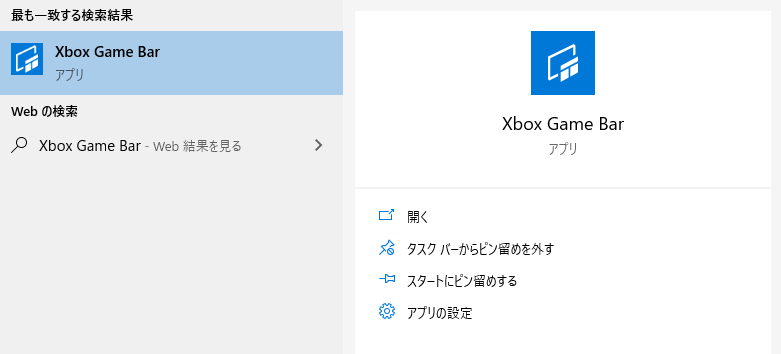
① “Xbox Game Bar” を検索

② “開く”をクリック
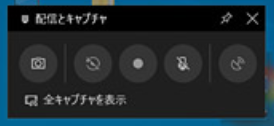
③ 中央の “●” をクリックするとキャプチャーを開始します。
まとめ
少し気になっていた (1) dataGridView のドラッグ&ドロップ による順番入れ替えと (2)PC画面連続キャプチャー方法について確認しました。
いいですねこれ。使わせていただきます。
自作アプリに組み込みます。