
| バーコード・QRコードリーダー |
Visual Studio Community 2019をインストールしバーコード・QRコードリーダーを作成してみました
パソコンに内蔵、もしくはUSB接続されているカメラ画像を取り込む為に “AForge” というライブラリを使用しました。接続されているカメラ、設定可能な解像度を自動で認識してくれるので、撮影は比較的簡単でした。
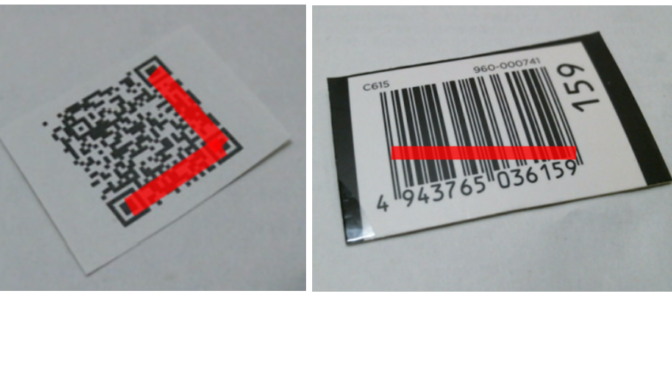
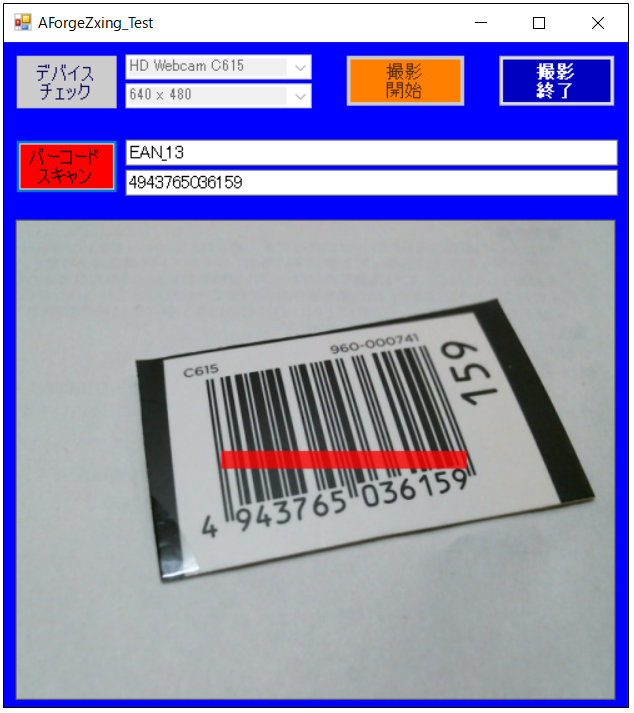
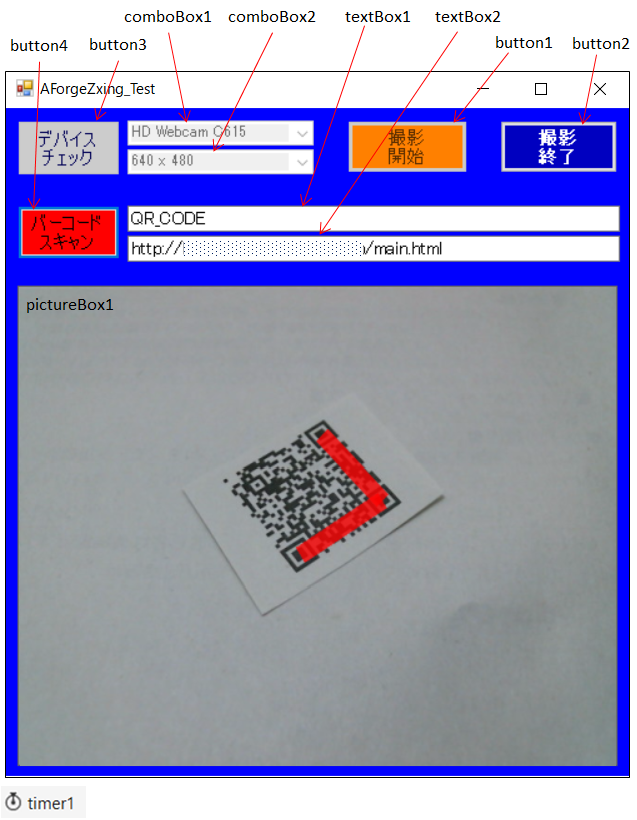
バーコード、QRコード解析には、“ZXing.net”というライブラリを使いました。下の写真は上側がバーコード読取、下側がQR読取した状態です。同時に取得できる座標情報を使って、赤い線を描画しています。
①バーコード認識
②QRコード認識
※プログラムで使用するコントロール名も記載しています。
| ライブラリ インストール |
ライブラリインストール手順です。先ず、C#フォームアプリケーションのプロジェクトを作成し、次に以下の①~⑤の手順を実行しました。
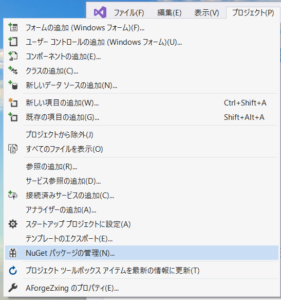
①“プロジェクト”-“NuGetパッケージの管理”を選択
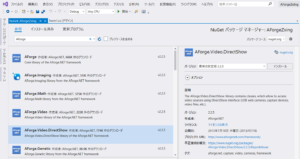
 ②“AForge.Video.DirectShow”を選択、インストール
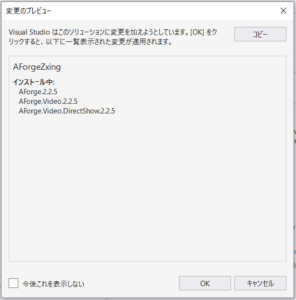
 ③関連ライブラリのインストール確認→「OK」
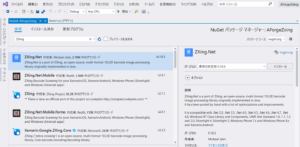
 ④“ZXing.NET”をインストール
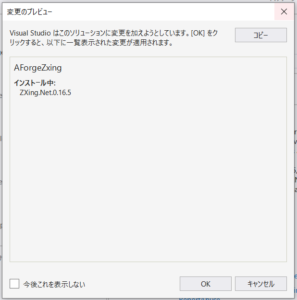
 ⑤ライブラリインストール確認→「OK」
| プログラム |
USBカメラから画像を取得する箇所は、ほぼ静大ロボットファクトリー活動日誌に掲載されているプログラムを利用させて頂きました。バーコード・QRコード読み取り部は、連続読取やバーコード位置表示など少しは検討してみました。
using System;
using System.Collections.Generic;
using System.ComponentModel;
using System.Data;
using System.Drawing;
using System.Linq;
using System.Text;
using System.Threading.Tasks;
using System.Windows.Forms;

using AForge.Video;
using AForge.Video.DirectShow;
using ZXing;


namespace AForgeZxing
{
    public partial class Form1 : Form
    {
        public Form1()
        {
            InitializeComponent();
        }

        private FilterInfoCollection videoDevices;              // 接続デバイス情報格納変数
        private VideoCaptureDevice videoDevice;                 // 使用デバイス格納変数
        private VideoCapabilities[] videoCapabilities;          // デバイス機能格納配列

        private void Form1_Load(object sender, EventArgs e)
        {
            comboBox2.Enabled = false;
            button1.Enabled = false;
            button2.Enabled = false;
        }

        // デバイスチェックボタン
        private void button3_Click(object sender, EventArgs e)
        {
            videoDevices = new FilterInfoCollection(FilterCategory.VideoInputDevice);
            if (videoDevices.Count != 0)
            {
                comboBox1.Items.Clear();
                foreach (FilterInfo device in videoDevices)
                {
                    comboBox1.Items.Add(device.Name);
                }
                comboBox1.SelectedIndex = 0;
                comboBox2.Enabled = true;
                button1.Enabled = true;
            }
            else
            {
                comboBox1.Items.Clear();
                comboBox1.Items.Add("デバイスが見つかりません");
                comboBox1.SelectedIndex = 0;
            }
        }

        // デバイス選択
        private void comboBox1_SelectedIndexChanged(object sender, EventArgs e)
        {
            videoDevice = new VideoCaptureDevice(videoDevices[comboBox1.SelectedIndex].MonikerString);
            videoCapabilities = videoDevice.VideoCapabilities;
            comboBox2.Items.Clear();
            foreach (VideoCapabilities capabilty in videoCapabilities)
            {
                comboBox2.Items.Add(string.Format("{0} x {1}", capabilty.FrameSize.Width, capabilty.FrameSize.Height));
            }
            comboBox2.SelectedIndex = 0;
            videoCapabilities = videoDevice.VideoCapabilities;
            comboBox2.Items.Clear();
            foreach (VideoCapabilities capabilty in videoCapabilities)
            {
                comboBox2.Items.Add(string.Format("{0} x {1}", capabilty.FrameSize.Width, capabilty.FrameSize.Height));
            }
            comboBox2.SelectedIndex = 0;

        }

        // 解像度選択
        private void comboBox2_SelectedIndexChanged(object sender, EventArgs e)
        {
            videoDevice.VideoResolution = videoCapabilities[comboBox2.SelectedIndex];
        }

        // 撮影開始
        private void button1_Click(object sender, EventArgs e)
        {
            videoDevice.NewFrame += new NewFrameEventHandler(videoDevice_NewFrame);
            videoDevice.Start();
            button1.Enabled = false;
            button2.Enabled = true;
            button3.Enabled = false;
            comboBox1.Enabled = false;
            comboBox2.Enabled = false;

        }

        // 撮影終了
        private void button2_Click(object sender, EventArgs e)
        {
            if (videoDevice.IsRunning)
            {
                videoDevice.SignalToStop();
                videoDevice.WaitForStop();
            }
            pictureBox1.Image = null;
            button1.Enabled = true;
            button2.Enabled = false;
            button3.Enabled = true;
            comboBox1.Enabled = true;
            comboBox2.Enabled = true;

        }

        // 新フレーム
        void videoDevice_NewFrame(object sender, NewFrameEventArgs eventArgs)
        {
            Bitmap img = (Bitmap)eventArgs.Frame.Clone();
            pictureBox1.Image = img;

        }

        // フォーム閉じる
        private void Form1_FormClosed(object sender, FormClosedEventArgs e)
        {
            if (videoDevice.IsRunning)
            {
                videoDevice.SignalToStop();
                videoDevice.WaitForStop();
                videoDevice = null;
            }
        }


        // バーコードスキャン開始/終了
        private void button4_Click(object sender, EventArgs e)
        {
            if (timer1.Enabled) {
                timer1.Enabled = false ;
                button4.BackColor = Color.Lime;
            } else {
                timer1.Enabled = true ;
            }
        }

        // バーコード検索
        private void timer1_Tick(object sender, EventArgs e)
        {
            if (button4.BackColor == Color.Lime)
            {
                button4.BackColor = Color.Red;
            }
            else {
                button4.BackColor = Color.Lime;
            }

            ZXing.BarcodeReader reader = new ZXing.BarcodeReader() {
                AutoRotate=true,TryInverted=true
            };
            reader.Options = new ZXing.Common.DecodingOptions
            {
                TryHarder = true,
                PossibleFormats = new[] { BarcodeFormat.CODE_39 , BarcodeFormat.EAN_13 ,
                    BarcodeFormat.QR_CODE , BarcodeFormat.CODE_128
                }.ToList()
            };

            ZXing.Result result = reader.Decode(pictureBox1.Image as Bitmap);

            if (result != null)
            {
                this.textBox1.Text = result.BarcodeFormat.ToString().Trim();
                this.textBox2.Text = result.Text;

                // 描画位置マーク
                string tmp = this.textBox1.Text;

                int x1 = (int)result.ResultPoints[0].X;
                int x2 = (int)result.ResultPoints[1].X;
                int y1 = (int)result.ResultPoints[0].Y;
                int y2 = (int)result.ResultPoints[1].Y;

                Bitmap canvas = new Bitmap(pictureBox1.Image);
                Pen p = new Pen(Color.FromArgb(200, Color.Red), 18);
                Graphics g = Graphics.FromImage(canvas);
                g.DrawImage(canvas, 0, 0, canvas.Width, canvas.Height);
                g.DrawLine(p, x1, y1, x2, y2);

                if (tmp == "QR_CODE") {
                    int x3 = (int)result.ResultPoints[2].X;
                    int y3 = (int)result.ResultPoints[2].Y;
                    g.DrawLine(p, x2, y2, x3, y3);
                }

                g.Dispose();
                pictureBox1.Image = canvas;

            }
            else
            {
                this.textBox1.Text = "NO BARCODE";
                this.textBox2.Text = "NO BARCODE";
            }
            reader = null;
        }
    }
}
| 参考サイト |
①AForgeライブラリ利用方法について
静大ロボットファクトリー活動日誌
(C#で画像処理-WEBカメラの使用)
http://robot-factory.blogspot.com/2013/10/c-web.html
②ZXing.NET利用方法について
.NET TIPS
ZXing.NETでQRコードやバーコードを解析するには?[C#/VB]https://www.atmarkit.co.jp/ait/articles/1803/14/news020.html
「C#でQRコードリーダーを作る」への1件のフィードバック